File length: 26268
# Authentication - Unified Login - Quickstart Guides - Multiple frontend domains with separate backends
Source: https://supertokens.com/docs/authentication/unified-login/quickstart-guides/multiple-frontends-with-separate-backends
## Overview
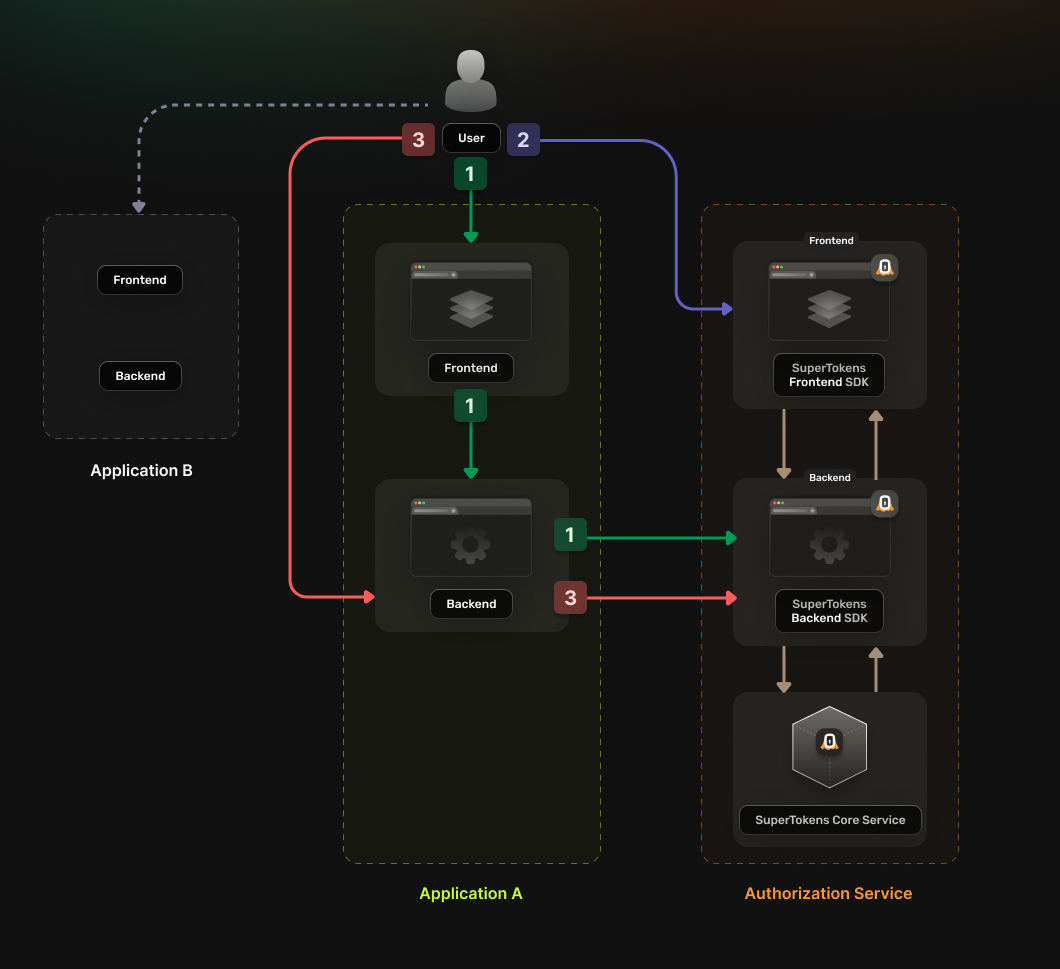
You can use the following guide if you have a single [**Authorization Service**](/docs/authentication/unified-login/oauth2-basics#authorization-server) that multiple applications use.
In turn, each app has separate **`frontend`** and **`backend`** instances that serve from different domains.
The authentication flow works in the following way:
## The User accesses the `frontend` app
- The application `frontend` calls a login endpoint on the `backend` application.
- The `backend` application generates an `authorization` URL to the [**Authorization Service**](/docs/authentication/unified-login/oauth2-basics#authorization-server) and redirects the user to it.
- The [**Authorization Service**](/docs/authentication/unified-login/oauth2-basics#authorization-server) backend redirects the user to the login UI
## The User completes the login attempt
- The [**Authorization Service**](/docs/authentication/unified-login/oauth2-basics#authorization-server) backend redirects the user to a `callback URL` that includes the **Authorization Code**.
## The user accesses the callback URL
- The **Authentication Code** gets sent to the application `backend`
- The `backend` exchanges the **Authentication Code** for an [**OAuth2 Access Token**](/docs/authentication/unified-login/oauth2-basics#oauth2-access-token)
- The `backend` saves the received token in a server session and sends it back to the `frontend` as a cookie.
The `frontend` can use the new cookie to access protected resources from the `backend`.
 ## Before you start
These instructions assume that you already have gone through the main [quickstart guide](/docs/quickstart/introduction).
If you have skipped that page, please follow the tutorial and return here once you're done.
:::info
Note that, if the *frontends* and *backends* are in different *sub domains*, you don't need to use *OAuth* and can instead use [session sharing across sub domains](/docs/post-authentication/session-management/share-session-across-sub-domains).
:::
## Steps
### 1. Enable the Unified Login feature
Go to the [**SuperTokens.com SaaS Dashboard**](https://supertokens.com) and follow these instructions:
1. Click on the **Enabled Paid Features** button
2. Click on **Managed Service**
3. Check the **Unified Login / M2M** option
4. Click *Save*
### 2. Create the OAuth2 Clients
For each of your applications you need to create a separate [**OAuth2 client**](/docs/authentication/unified-login/oauth2-basics#client).
You can do this by directly calling the **SuperTokens Core** API.
```bash
curl --location --request POST '/recipe/oauth/clients' \
--header 'api-key: ^{coreInfo.key}' \
--header 'Content-Type: application/json; charset=utf-8' \
--data '
{
"clientName": "",
"responseTypes": ["code"],
"grantTypes": ["authorization_code", "refresh_token"],
"scope": "offline_access ",
"redirectUris": ["https:///oauth/callback"],
}
'
```
```tsx
const BASE_URL = '';
const API_KEY = '^{coreInfo.key}';
const url = `${BASE_URL}/recipe/oauth/clients`;
const options = {
method: 'POST',
headers: {
'api-key': API_KEY,
'Content-Type': 'application/json; charset=utf-8',
},
body: JSON.stringify({
clientName: "",
responseTypes: ["code"],
grantTypes: ["authorization_code", "refresh_token"],
scope: "offline_access ",
redirectUris: ["https:///oauth/callback"],
})
};
fetch(url, options)
.then(response => response.json())
.then(json => console.log(json))
.catch(err => console.error(err));
```
```go
BASE_URL = ""
API_KEY = "^{coreInfo.key}"
url = f"{BASE_URL}/recipe/oauth/clients"
payload: Dict[str, Any] ={
"clientName": "",
"responseTypes": ["code"],
"grantTypes": ["authorization_code", "refresh_token"],
"scope": "offline_access ",
"redirectUris": ["https:///oauth/callback"],
}
headers = {
"api-key": API_KEY,
"Content-Type": "application/json",
}
response = requests.post(url, json=payload, headers=headers)
print(response.json())
```
:::caution
You have to save the create OAuth2 Client response because this is not persisted internally for security reasons.
The information is necessary for the next steps.
:::
### 3. Set Up your Authorization Service backend
In your [**Authorization Service**](/docs/authentication/unified-login/oauth2-basics#authorization-server) you need to initialize the **OAuth2Provider** recipe.
The recipe exposes the endpoints needed for enabling the [**OAuth 2.0**](/docs/authentication/unified-login/oauth2-basics) flow.
Update the `supertokens.init` call to include the `OAuth2Provider` recipe.
Add the import statement for the recipe and update the list of recipes with the new initialization step.
```tsx
supertokens.init({
supertokens: {
connectionURI: "...",
apiKey: "...",
},
appInfo: {
appName: "...",
apiDomain: "...",
websiteDomain: "...",
},
recipeList: [
OAuth2Provider.init(),
]
});
```
:::caution
At the moment there is no support for creating OAuth2 providers in the Go SDK.
:::
```python
from supertokens_python import init, InputAppInfo, SupertokensConfig
from supertokens_python.recipe import oauth2provider
init(
app_info=InputAppInfo(
app_name="...",
api_domain="...",
website_domain="...",
),
framework="fastapi",
supertokens_config=SupertokensConfig(
connection_uri="...",
api_key="..."
),
recipe_list=[
oauth2provider.init()
],
)
```
### 4. Configure the Authorization Service frontend
#### 4.1 Initialize the recipe
Add the import statement for the new recipe and update the list of recipe to also include the new initialization.
```tsx
SuperTokens.init({
appInfo: {
appName: "...",
apiDomain: "...",
websiteDomain: "...",
},
recipeList: [
OAuth2Provider.init()
]
});
```
#### 4.2 Include the pre-built UI in the rendering tree.
```tsx
class App extends React.Component {
render() {
return (
{/*This renders the login UI on the /auth route*/}
{getSuperTokensRoutesForReactRouterDom(reactRouterDom, [OAuth2ProviderPreBuiltUI])}
{/*Your app routes*/}
);
}
}
```
```tsx
class App extends React.Component {
render() {
if (canHandleRoute([OAuth2ProviderPreBuiltUI])) {
// This renders the login UI on the /auth route
return getRoutingComponent([OAuth2ProviderPreBuiltUI])
}
return (
{/*Your app*/}
);
}
}
```
Update the `AuthComponent` to include the `OAuth2Provider` recipe.
You need to add a new item in the `recipeList` array.
```tsx title="/app/auth/auth.component.ts"
@Component({
selector: "app-auth",
template: '',
})
export class AuthComponent implements OnDestroy, AfterViewInit {
constructor(
private renderer: Renderer2,
@Inject(DOCUMENT) private document: Document
) { }
ngAfterViewInit() {
this.loadScript('^{prebuiltUIVersion}');
}
ngOnDestroy() {
// Remove the script when the component is destroyed
const script = this.document.getElementById('supertokens-script');
if (script) {
script.remove();
}
}
private loadScript(src: string) {
const script = this.renderer.createElement('script');
script.type = 'text/javascript';
script.src = src;
script.id = 'supertokens-script';
script.onload = () => {
supertokensUIInit({
appInfo: {
appName: "",
apiDomain: "",
websiteDomain: "",
apiBasePath: "",
websiteBasePath: ""
},
recipeList: [
// Don't forget to also include the other recipes that you are already using
supertokensUIOAuth2Provider.init()
],
});
}
this.renderer.appendChild(this.document.body, script);
}
}
```
Update the `AuthView` component to include the `OAuth2Provider` recipe.
You need to add a new item in the `recipeList` array, inside the `supertokensUIInit` call.
```tsx
```
The user interface that you are going to build should respect this flow:
## A user accesses your application and tries to login.
It's up to you how you want to handle this.
They can click a button to login or you can directly start the login flow.
## They get redirected to the **Authorization Service Backend**
A **OAuth2/OpenID Connect (OIDC)** library can execute this action.
Check the previous guides for information on what you could use.
## The **Authorization Service Backend** redirects them to the **Authorization Service Frontend** login page.
The page URL contains a `loginChallenge` parameter that keeps track of the login attempt.
Besides that, the URL can also include a `forceFreshAuth` parameter.
As the name suggests, this should force the login UI to be visible even though the user has an existing valid session.
This guide shows you how to handle this.
## The **Authorization Service Frontend** renders the login UI and the user performs the login action.
The login UI should render based on instructions that are specific to each authentication method which you are using.
The additional thing that you have to do here is to consider the `forceFreshAuth` parameter.
## The **Authorization Service Frontend** redirects the user back to the **Authorization Service Backend**
After the user submits the login form, you need to redirect them to a specific route that sends them to the original application.
From here, the authentication flow completes.
Let's see how you can actually implement this UI.
#### 4.1 Configure the redirection URLs
As it has hinted in the previous section, the **Authorization Service Backend** sends the user to different pages from the **Authorization Service Frontend**, based on the action that needs execution.
The default values for these routes are:
- The login page maps to `` (this is also the place where a user ends up after logout)
- The token refresh page maps to `/try-refresh`
- The logout page maps to `/logout`
If you want to change these routes, you need to add a custom override.
:::info
This override needs addition to the **Authorization Service Backend**.
:::
```tsx
OAuth2Provider.init({
override: {
functions: (originalFunctions) => ({
...originalFunctions,
getFrontendRedirectionURL: async (input) => {
const websiteDomain = '';
const websiteBasePath = '';
if (input.type === "login") {
const queryParams = new URLSearchParams({
loginChallenge: input.loginChallenge,
});
if (input.hint !== undefined) {
queryParams.set("hint", input.hint);
}
if (input.forceFreshAuth) {
queryParams.set("forceFreshAuth", "true");
}
return `?${queryParams.toString()}`;
} else if (input.type === "try-refresh") {
return `/try-refresh?loginChallenge=${input.loginChallenge}`;
} else if (input.type === "post-logout-fallback") {
return ``;
} else if (input.type === "logout-confirmation") {
return `/oauth/logout?logoutChallenge=${input.logoutChallenge}`;
}
return ``;
},
}),
},
})
```
:::caution
At the moment, there is no support for creating OAuth2 providers in the Go SDK.
:::
:::caution
At the moment, there is no support for creating OAuth2 providers in the Python SDK.
:::
#### 4.2 Handle the forceFreshAuth parameter
Sometimes, even though there is an existing valid session in the **Authorization Service Frontend**, the requesting **Client** might force a new login attempt.
The `forceFreshAuth` parameter shows this.
When the login page renders, you also need to check for this parameter. You are doing this to know if you need to show the login UI.
Here is an example of how you can evaluate this case.
```tsx
async function shouldLogin() {
const urlParams = new URLSearchParams(window.location.search);
const forceFreshAuth = urlParams.get('forceFreshAuth') as string;
if(forceFreshAuth === "true") return true;
return Session.doesSessionExist();
}
```
:::info Multi Tenancy
If you are using multi-tenancy, you also need to keep track of the `tenantId` query parameter and pass it between the **Authorization Service Frontend** pages.
:::
#### 4.3 Complete the login attempt
After the user submits the login form, you need to redirect them to a specific route to complete the **OAuth 2** flow.
The following code sample shows you how to determine which URL to use.
```tsx
async function getInitialRedirectionURL() {
const urlParams = new URLSearchParams(window.location.search);
const loginChallenge = urlParams.get('loginChallenge') as string;
const redirectionResponse = await OAuth2Provider.getRedirectURLToContinueOAuthFlow({ loginChallenge });
if (redirectionResponse.status === "OK") {
return redirectionResponse.frontendRedirectTo;
}
}
```
:::caution
For mobile apps, you need to reuse the web authentication flow. Check this [guide](/docs/authentication/unified-login/reuse-website-login) for more information.
:::
#### 4.4 Add the token refresh page
To have support for token refreshing, you need to add a new page to your application.
The path should correspond to the one outlined during the first step.
When the user ends up on this page, you need to use the `Session` recipe to perform the refresh action.
Then they need redirection to a page from your application.
Here's a code sample that shows you how to do this.
```tsx
async function refreshToken() {
await Session.attemptRefreshingSession();
const urlParams = new URLSearchParams(window.location.search);
const loginChallenge = urlParams.get('loginChallenge') as string;
const redirectionResponse = await OAuth2Provider.getRedirectURLToContinueOAuthFlow({ loginChallenge });
if (redirectionResponse.status === "OK") {
window.location.href = redirectionResponse.frontendRedirectTo;
}
}
```
:::caution
For mobile apps, you need to reuse the web authentication flow. Check this [guide](/docs/authentication/unified-login/reuse-website-login) for more information.
:::
#### 4.5 Add the logout page
You need to add a logout page that users access when they want to end their session.
The path should correspond to the one outlined during the first step.
The logout action should first ask the user for confirmation.
If the confirmation passes, then you can call the recipe function.
Based on the final response you can redirect the user to the provided redirection URL.
```tsx
async function logout() {
const confirmation = confirm("Are you sure that you want to log out?");
if(!confirmation) return;
const urlParams = new URLSearchParams(window.location.search);
const logoutChallenge = urlParams.get('logoutChallenge') as string;
const redirectResponse = await OAuth2Provider.logOut({ logoutChallenge });
window.location.href = redirectResponse.frontendRedirectTo;
}
```
:::caution
For mobile apps, you need to reuse the web authentication flow. Check this [guide](/docs/authentication/unified-login/reuse-website-login) for more information.
:::
### 5. Set up session handling in each application
In each of your individual `applications` you need to set up logic for handling the **OAuth 2.0** authentication flow.
You can use a generic **OIDC** or **OAuth2** library to do this.
You can use the [passport-oauth2](https://www.passportjs.org/packages/passport-oauth2/) library.
Follow the instructions on the library's page and set up your application `backend`.
You can determine the configuration parameters based on the response received in **step 2**, when creating the **OAuth2 Client**.
- `authorizationURL` corresponds to `authorizeUrl`
- `tokenURL` corresponds to `tokenFetchUrl`
- `clientID` corresponds to `clientId`
- `clientSecret` corresponds to `clientSecret`
- `callbackURL` corresponds to a value from `callbackUrls`
- `scope` corresponds to `scope`
Make sure that you expose an endpoint that calls `passport.authenticate('oauth2')`.
This way the user ends up accessing the actual login page served by the **Authorization Service**.
You can use the [OAuth2](https://pkg.go.dev/golang.org/x/oauth2) library.
Follow these [instructions](https://golang.org/pkg/golang.org/x/oauth2/#example-Config-RequestToken) and implement it in your `backend`.
You can determine the configuration parameters based on the response received in **step 2**.
- `ClientID` corresponds to `clientId`
- `ClientSecret` corresponds to `clientSecret`
- `Scopes` corresponds to `scope`
- `Endpoint.AuthURL` corresponds to `authorizeUrl`
- `Endpoint.TokenURL` corresponds to `tokenFetchUrl`
Make sure that you expose an endpoint that redirects to the authentication URL obtained from calling `AuthCodeURL`.
This way the user ends up accessing the actual login page served by the **Authorization Service**.
You can use the [AuthLib](https://docs.authlib.org/) library.
Follow these [instructions](https://docs.authlib.org/en/latest/client/oauth2.html) and implement it in your `backend`.
You can determine the configuration parameters based on the response received in **step 2**.
- `client_id` corresponds to `clientId`
- `client_secret` corresponds to `clientSecret`
- `scope` corresponds to `scope`
- `authorization_endpoint` corresponds to `authorizeUrl`
- `token_endpoint` corresponds to `tokenFetchUrl`
Make sure that you expose an endpoint that redirects to the authentication URL obtained from calling `create_authorization_url`.
This way the user ends up accessing the actual login page served by the **Authorization Service**.
You can use the [League OAuth2 Client](https://github.com/thephpleague/oauth2-client) library.
Follow these [instructions](https://oauth2-client.thephpleague.com/usage/) and implement it in your `backend`.
You can determine the configuration parameters based on the response received in **step 2**.
- `clientId` corresponds to `clientId`
- `clientSecret` corresponds to `clientSecret`
- `redirectUri` corresponds to a value from `callbackUrls`
- `urlAuthorize` corresponds to `authorizeUrl`
- `urlAccessToken` corresponds to `tokenFetchUrl`
Make sure that you expose an endpoint that redirects to the authentication URL obtained from calling `getAuthorizationUrl`.
This way the user ends up accessing the actual login page served by the **Authorization Service**.
You can use the [Spring Security](https://github.com/spring-projects/spring-security) library.
Follow these [instructions](https://docs.spring.io/spring-security/reference/servlet/oauth2/index.html#oauth2-client-log-users-in) and implement it in your `backend`.
You can determine the configuration parameters based on the response received in **step 2**.
- `client-id` corresponds to `clientId`
- `client-secret` corresponds to `clientSecret`
- `scope` corresponds to `scope`
- `issuer-uri` corresponds to ``
You can use the [IdentityModel](https://github.com/IdentityModel/IdentityModel) library.
Follow these [instructions](https://identitymodel.readthedocs.io/en/latest/client/token.html#requesting-a-token-using-the-authorization-code-grant-type) and implement it in your `backend`.
You can determine the configuration parameters based on the response received in **step 2**.
- `Address` corresponds to ``
- `ClientId` corresponds to `clientId`
- `ClientSecret` corresponds to `clientSecret`
- `RedirectUri` corresponds to a value from `callbackUrls`
Make sure that you expose an endpoint that redirects to the authentication URL obtained by using [this example](https://identitymodel.readthedocs.io/en/latest/misc/request_url.html#authorization-endpoint).
This way the user ends up accessing the actual login page served by the **Authorization Service**.
:::info
If you want to use the [**OAuth2 Refresh Tokens**](/docs/authentication/unified-login/oauth2-basics#oauth2-refresh-token) make sure to include the `offline_access` scope during the initialization step.
:::
### 6. Update the login flow in your frontend applications
In your `frontend` applications you need to add a login action that directs the user to the authentication page.
The user should first redirect to the `backend` authentication endpoint defined during the previous step.
There the `backend` generates a safe `authorization` URL using the **OAuth2** library and then redirects the user there.
After the user has logged in from the [**Authorization Service**](/docs/authentication/unified-login/oauth2-basics#authorization-server) they redirect to the `backend` callback URL.
Then the `backend` creates the authentication session and sends it to the user agent as a cookie.
### 7. Test the new authentication flow
With everything set up, you can test your login flow.
Use the setup created in the previous step to check if the authentication flow completes without any issues.
## Before you start
These instructions assume that you already have gone through the main [quickstart guide](/docs/quickstart/introduction).
If you have skipped that page, please follow the tutorial and return here once you're done.
:::info
Note that, if the *frontends* and *backends* are in different *sub domains*, you don't need to use *OAuth* and can instead use [session sharing across sub domains](/docs/post-authentication/session-management/share-session-across-sub-domains).
:::
## Steps
### 1. Enable the Unified Login feature
Go to the [**SuperTokens.com SaaS Dashboard**](https://supertokens.com) and follow these instructions:
1. Click on the **Enabled Paid Features** button
2. Click on **Managed Service**
3. Check the **Unified Login / M2M** option
4. Click *Save*
### 2. Create the OAuth2 Clients
For each of your applications you need to create a separate [**OAuth2 client**](/docs/authentication/unified-login/oauth2-basics#client).
You can do this by directly calling the **SuperTokens Core** API.
```bash
curl --location --request POST '/recipe/oauth/clients' \
--header 'api-key: ^{coreInfo.key}' \
--header 'Content-Type: application/json; charset=utf-8' \
--data '
{
"clientName": "",
"responseTypes": ["code"],
"grantTypes": ["authorization_code", "refresh_token"],
"scope": "offline_access ",
"redirectUris": ["https:///oauth/callback"],
}
'
```
```tsx
const BASE_URL = '';
const API_KEY = '^{coreInfo.key}';
const url = `${BASE_URL}/recipe/oauth/clients`;
const options = {
method: 'POST',
headers: {
'api-key': API_KEY,
'Content-Type': 'application/json; charset=utf-8',
},
body: JSON.stringify({
clientName: "",
responseTypes: ["code"],
grantTypes: ["authorization_code", "refresh_token"],
scope: "offline_access ",
redirectUris: ["https:///oauth/callback"],
})
};
fetch(url, options)
.then(response => response.json())
.then(json => console.log(json))
.catch(err => console.error(err));
```
```go
BASE_URL = ""
API_KEY = "^{coreInfo.key}"
url = f"{BASE_URL}/recipe/oauth/clients"
payload: Dict[str, Any] ={
"clientName": "",
"responseTypes": ["code"],
"grantTypes": ["authorization_code", "refresh_token"],
"scope": "offline_access ",
"redirectUris": ["https:///oauth/callback"],
}
headers = {
"api-key": API_KEY,
"Content-Type": "application/json",
}
response = requests.post(url, json=payload, headers=headers)
print(response.json())
```
:::caution
You have to save the create OAuth2 Client response because this is not persisted internally for security reasons.
The information is necessary for the next steps.
:::
### 3. Set Up your Authorization Service backend
In your [**Authorization Service**](/docs/authentication/unified-login/oauth2-basics#authorization-server) you need to initialize the **OAuth2Provider** recipe.
The recipe exposes the endpoints needed for enabling the [**OAuth 2.0**](/docs/authentication/unified-login/oauth2-basics) flow.
Update the `supertokens.init` call to include the `OAuth2Provider` recipe.
Add the import statement for the recipe and update the list of recipes with the new initialization step.
```tsx
supertokens.init({
supertokens: {
connectionURI: "...",
apiKey: "...",
},
appInfo: {
appName: "...",
apiDomain: "...",
websiteDomain: "...",
},
recipeList: [
OAuth2Provider.init(),
]
});
```
:::caution
At the moment there is no support for creating OAuth2 providers in the Go SDK.
:::
```python
from supertokens_python import init, InputAppInfo, SupertokensConfig
from supertokens_python.recipe import oauth2provider
init(
app_info=InputAppInfo(
app_name="...",
api_domain="...",
website_domain="...",
),
framework="fastapi",
supertokens_config=SupertokensConfig(
connection_uri="...",
api_key="..."
),
recipe_list=[
oauth2provider.init()
],
)
```
### 4. Configure the Authorization Service frontend
#### 4.1 Initialize the recipe
Add the import statement for the new recipe and update the list of recipe to also include the new initialization.
```tsx
SuperTokens.init({
appInfo: {
appName: "...",
apiDomain: "...",
websiteDomain: "...",
},
recipeList: [
OAuth2Provider.init()
]
});
```
#### 4.2 Include the pre-built UI in the rendering tree.
```tsx
class App extends React.Component {
render() {
return (
{/*This renders the login UI on the /auth route*/}
{getSuperTokensRoutesForReactRouterDom(reactRouterDom, [OAuth2ProviderPreBuiltUI])}
{/*Your app routes*/}
);
}
}
```
```tsx
class App extends React.Component {
render() {
if (canHandleRoute([OAuth2ProviderPreBuiltUI])) {
// This renders the login UI on the /auth route
return getRoutingComponent([OAuth2ProviderPreBuiltUI])
}
return (
{/*Your app*/}
);
}
}
```
Update the `AuthComponent` to include the `OAuth2Provider` recipe.
You need to add a new item in the `recipeList` array.
```tsx title="/app/auth/auth.component.ts"
@Component({
selector: "app-auth",
template: '',
})
export class AuthComponent implements OnDestroy, AfterViewInit {
constructor(
private renderer: Renderer2,
@Inject(DOCUMENT) private document: Document
) { }
ngAfterViewInit() {
this.loadScript('^{prebuiltUIVersion}');
}
ngOnDestroy() {
// Remove the script when the component is destroyed
const script = this.document.getElementById('supertokens-script');
if (script) {
script.remove();
}
}
private loadScript(src: string) {
const script = this.renderer.createElement('script');
script.type = 'text/javascript';
script.src = src;
script.id = 'supertokens-script';
script.onload = () => {
supertokensUIInit({
appInfo: {
appName: "",
apiDomain: "",
websiteDomain: "",
apiBasePath: "",
websiteBasePath: ""
},
recipeList: [
// Don't forget to also include the other recipes that you are already using
supertokensUIOAuth2Provider.init()
],
});
}
this.renderer.appendChild(this.document.body, script);
}
}
```
Update the `AuthView` component to include the `OAuth2Provider` recipe.
You need to add a new item in the `recipeList` array, inside the `supertokensUIInit` call.
```tsx
```
The user interface that you are going to build should respect this flow:
## A user accesses your application and tries to login.
It's up to you how you want to handle this.
They can click a button to login or you can directly start the login flow.
## They get redirected to the **Authorization Service Backend**
A **OAuth2/OpenID Connect (OIDC)** library can execute this action.
Check the previous guides for information on what you could use.
## The **Authorization Service Backend** redirects them to the **Authorization Service Frontend** login page.
The page URL contains a `loginChallenge` parameter that keeps track of the login attempt.
Besides that, the URL can also include a `forceFreshAuth` parameter.
As the name suggests, this should force the login UI to be visible even though the user has an existing valid session.
This guide shows you how to handle this.
## The **Authorization Service Frontend** renders the login UI and the user performs the login action.
The login UI should render based on instructions that are specific to each authentication method which you are using.
The additional thing that you have to do here is to consider the `forceFreshAuth` parameter.
## The **Authorization Service Frontend** redirects the user back to the **Authorization Service Backend**
After the user submits the login form, you need to redirect them to a specific route that sends them to the original application.
From here, the authentication flow completes.
Let's see how you can actually implement this UI.
#### 4.1 Configure the redirection URLs
As it has hinted in the previous section, the **Authorization Service Backend** sends the user to different pages from the **Authorization Service Frontend**, based on the action that needs execution.
The default values for these routes are:
- The login page maps to `` (this is also the place where a user ends up after logout)
- The token refresh page maps to `/try-refresh`
- The logout page maps to `/logout`
If you want to change these routes, you need to add a custom override.
:::info
This override needs addition to the **Authorization Service Backend**.
:::
```tsx
OAuth2Provider.init({
override: {
functions: (originalFunctions) => ({
...originalFunctions,
getFrontendRedirectionURL: async (input) => {
const websiteDomain = '';
const websiteBasePath = '';
if (input.type === "login") {
const queryParams = new URLSearchParams({
loginChallenge: input.loginChallenge,
});
if (input.hint !== undefined) {
queryParams.set("hint", input.hint);
}
if (input.forceFreshAuth) {
queryParams.set("forceFreshAuth", "true");
}
return `?${queryParams.toString()}`;
} else if (input.type === "try-refresh") {
return `/try-refresh?loginChallenge=${input.loginChallenge}`;
} else if (input.type === "post-logout-fallback") {
return ``;
} else if (input.type === "logout-confirmation") {
return `/oauth/logout?logoutChallenge=${input.logoutChallenge}`;
}
return ``;
},
}),
},
})
```
:::caution
At the moment, there is no support for creating OAuth2 providers in the Go SDK.
:::
:::caution
At the moment, there is no support for creating OAuth2 providers in the Python SDK.
:::
#### 4.2 Handle the forceFreshAuth parameter
Sometimes, even though there is an existing valid session in the **Authorization Service Frontend**, the requesting **Client** might force a new login attempt.
The `forceFreshAuth` parameter shows this.
When the login page renders, you also need to check for this parameter. You are doing this to know if you need to show the login UI.
Here is an example of how you can evaluate this case.
```tsx
async function shouldLogin() {
const urlParams = new URLSearchParams(window.location.search);
const forceFreshAuth = urlParams.get('forceFreshAuth') as string;
if(forceFreshAuth === "true") return true;
return Session.doesSessionExist();
}
```
:::info Multi Tenancy
If you are using multi-tenancy, you also need to keep track of the `tenantId` query parameter and pass it between the **Authorization Service Frontend** pages.
:::
#### 4.3 Complete the login attempt
After the user submits the login form, you need to redirect them to a specific route to complete the **OAuth 2** flow.
The following code sample shows you how to determine which URL to use.
```tsx
async function getInitialRedirectionURL() {
const urlParams = new URLSearchParams(window.location.search);
const loginChallenge = urlParams.get('loginChallenge') as string;
const redirectionResponse = await OAuth2Provider.getRedirectURLToContinueOAuthFlow({ loginChallenge });
if (redirectionResponse.status === "OK") {
return redirectionResponse.frontendRedirectTo;
}
}
```
:::caution
For mobile apps, you need to reuse the web authentication flow. Check this [guide](/docs/authentication/unified-login/reuse-website-login) for more information.
:::
#### 4.4 Add the token refresh page
To have support for token refreshing, you need to add a new page to your application.
The path should correspond to the one outlined during the first step.
When the user ends up on this page, you need to use the `Session` recipe to perform the refresh action.
Then they need redirection to a page from your application.
Here's a code sample that shows you how to do this.
```tsx
async function refreshToken() {
await Session.attemptRefreshingSession();
const urlParams = new URLSearchParams(window.location.search);
const loginChallenge = urlParams.get('loginChallenge') as string;
const redirectionResponse = await OAuth2Provider.getRedirectURLToContinueOAuthFlow({ loginChallenge });
if (redirectionResponse.status === "OK") {
window.location.href = redirectionResponse.frontendRedirectTo;
}
}
```
:::caution
For mobile apps, you need to reuse the web authentication flow. Check this [guide](/docs/authentication/unified-login/reuse-website-login) for more information.
:::
#### 4.5 Add the logout page
You need to add a logout page that users access when they want to end their session.
The path should correspond to the one outlined during the first step.
The logout action should first ask the user for confirmation.
If the confirmation passes, then you can call the recipe function.
Based on the final response you can redirect the user to the provided redirection URL.
```tsx
async function logout() {
const confirmation = confirm("Are you sure that you want to log out?");
if(!confirmation) return;
const urlParams = new URLSearchParams(window.location.search);
const logoutChallenge = urlParams.get('logoutChallenge') as string;
const redirectResponse = await OAuth2Provider.logOut({ logoutChallenge });
window.location.href = redirectResponse.frontendRedirectTo;
}
```
:::caution
For mobile apps, you need to reuse the web authentication flow. Check this [guide](/docs/authentication/unified-login/reuse-website-login) for more information.
:::
### 5. Set up session handling in each application
In each of your individual `applications` you need to set up logic for handling the **OAuth 2.0** authentication flow.
You can use a generic **OIDC** or **OAuth2** library to do this.
You can use the [passport-oauth2](https://www.passportjs.org/packages/passport-oauth2/) library.
Follow the instructions on the library's page and set up your application `backend`.
You can determine the configuration parameters based on the response received in **step 2**, when creating the **OAuth2 Client**.
- `authorizationURL` corresponds to `authorizeUrl`
- `tokenURL` corresponds to `tokenFetchUrl`
- `clientID` corresponds to `clientId`
- `clientSecret` corresponds to `clientSecret`
- `callbackURL` corresponds to a value from `callbackUrls`
- `scope` corresponds to `scope`
Make sure that you expose an endpoint that calls `passport.authenticate('oauth2')`.
This way the user ends up accessing the actual login page served by the **Authorization Service**.
You can use the [OAuth2](https://pkg.go.dev/golang.org/x/oauth2) library.
Follow these [instructions](https://golang.org/pkg/golang.org/x/oauth2/#example-Config-RequestToken) and implement it in your `backend`.
You can determine the configuration parameters based on the response received in **step 2**.
- `ClientID` corresponds to `clientId`
- `ClientSecret` corresponds to `clientSecret`
- `Scopes` corresponds to `scope`
- `Endpoint.AuthURL` corresponds to `authorizeUrl`
- `Endpoint.TokenURL` corresponds to `tokenFetchUrl`
Make sure that you expose an endpoint that redirects to the authentication URL obtained from calling `AuthCodeURL`.
This way the user ends up accessing the actual login page served by the **Authorization Service**.
You can use the [AuthLib](https://docs.authlib.org/) library.
Follow these [instructions](https://docs.authlib.org/en/latest/client/oauth2.html) and implement it in your `backend`.
You can determine the configuration parameters based on the response received in **step 2**.
- `client_id` corresponds to `clientId`
- `client_secret` corresponds to `clientSecret`
- `scope` corresponds to `scope`
- `authorization_endpoint` corresponds to `authorizeUrl`
- `token_endpoint` corresponds to `tokenFetchUrl`
Make sure that you expose an endpoint that redirects to the authentication URL obtained from calling `create_authorization_url`.
This way the user ends up accessing the actual login page served by the **Authorization Service**.
You can use the [League OAuth2 Client](https://github.com/thephpleague/oauth2-client) library.
Follow these [instructions](https://oauth2-client.thephpleague.com/usage/) and implement it in your `backend`.
You can determine the configuration parameters based on the response received in **step 2**.
- `clientId` corresponds to `clientId`
- `clientSecret` corresponds to `clientSecret`
- `redirectUri` corresponds to a value from `callbackUrls`
- `urlAuthorize` corresponds to `authorizeUrl`
- `urlAccessToken` corresponds to `tokenFetchUrl`
Make sure that you expose an endpoint that redirects to the authentication URL obtained from calling `getAuthorizationUrl`.
This way the user ends up accessing the actual login page served by the **Authorization Service**.
You can use the [Spring Security](https://github.com/spring-projects/spring-security) library.
Follow these [instructions](https://docs.spring.io/spring-security/reference/servlet/oauth2/index.html#oauth2-client-log-users-in) and implement it in your `backend`.
You can determine the configuration parameters based on the response received in **step 2**.
- `client-id` corresponds to `clientId`
- `client-secret` corresponds to `clientSecret`
- `scope` corresponds to `scope`
- `issuer-uri` corresponds to ``
You can use the [IdentityModel](https://github.com/IdentityModel/IdentityModel) library.
Follow these [instructions](https://identitymodel.readthedocs.io/en/latest/client/token.html#requesting-a-token-using-the-authorization-code-grant-type) and implement it in your `backend`.
You can determine the configuration parameters based on the response received in **step 2**.
- `Address` corresponds to ``
- `ClientId` corresponds to `clientId`
- `ClientSecret` corresponds to `clientSecret`
- `RedirectUri` corresponds to a value from `callbackUrls`
Make sure that you expose an endpoint that redirects to the authentication URL obtained by using [this example](https://identitymodel.readthedocs.io/en/latest/misc/request_url.html#authorization-endpoint).
This way the user ends up accessing the actual login page served by the **Authorization Service**.
:::info
If you want to use the [**OAuth2 Refresh Tokens**](/docs/authentication/unified-login/oauth2-basics#oauth2-refresh-token) make sure to include the `offline_access` scope during the initialization step.
:::
### 6. Update the login flow in your frontend applications
In your `frontend` applications you need to add a login action that directs the user to the authentication page.
The user should first redirect to the `backend` authentication endpoint defined during the previous step.
There the `backend` generates a safe `authorization` URL using the **OAuth2** library and then redirects the user there.
After the user has logged in from the [**Authorization Service**](/docs/authentication/unified-login/oauth2-basics#authorization-server) they redirect to the `backend` callback URL.
Then the `backend` creates the authentication session and sends it to the user agent as a cookie.
### 7. Test the new authentication flow
With everything set up, you can test your login flow.
Use the setup created in the previous step to check if the authentication flow completes without any issues.